Invite Team Members
Add colleagues, assign roles, and decide what each person can do.
Built-in roles
Three default roles ship with DM Editors. Pick whichever fits — you can also create custom roles.
| Role | Can do | Best for |
|---|---|---|
| Super Admin | Everything — including managing users, roles, settings, API keys. | Owners, lead developers. |
| Editor | Create / edit / publish / delete content and media. | Senior editorial staff. |
| Author | Create & edit drafts. Cannot publish or delete. | Contributors, junior writers. |
Invite a new user
-
Open Users
Click Users in the sidebar, then New user.
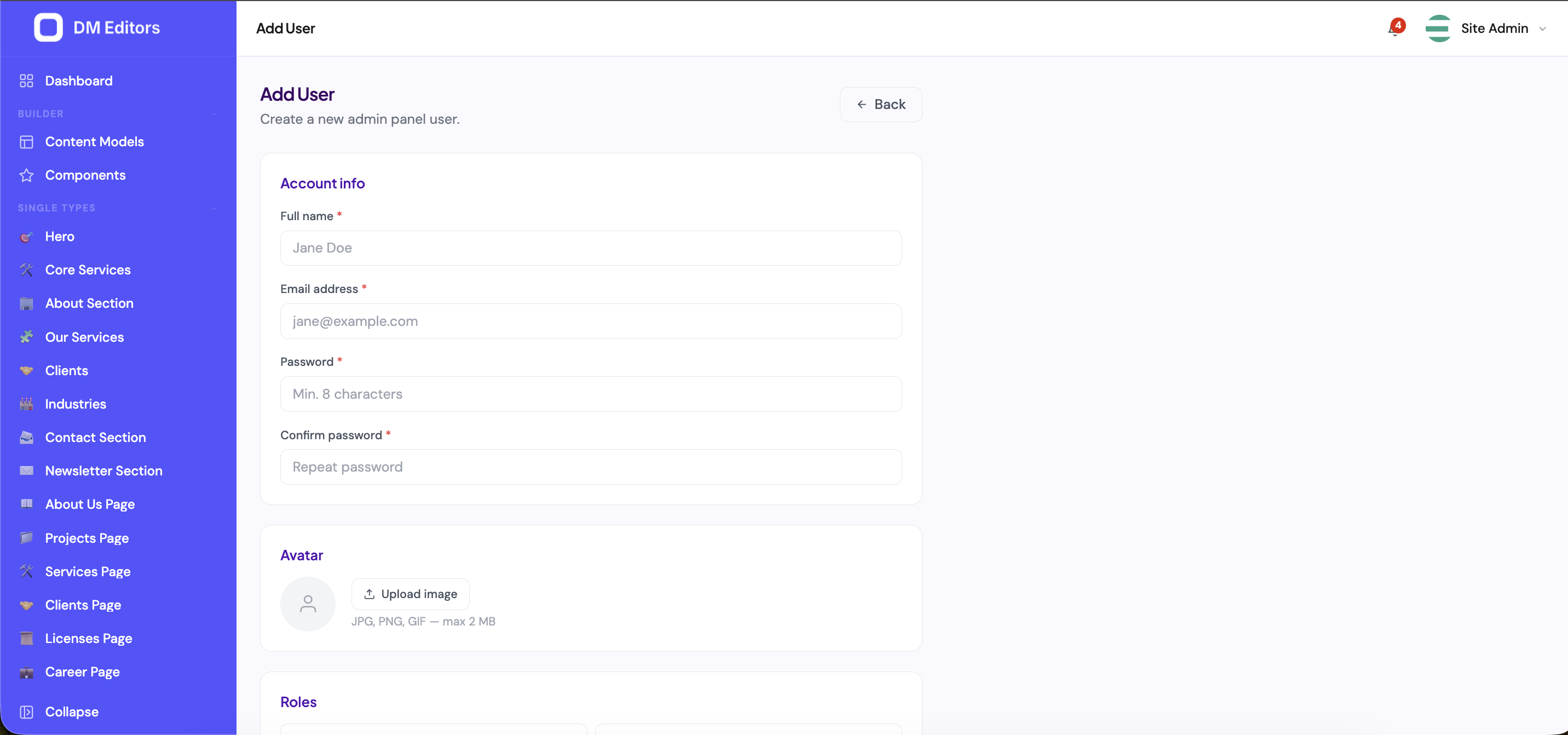
From the Users screen, click New user to open this form. - Fill in the basics Name, email, a temporary password. The user will change the password on first login.
-
Assign one or more roles
Tick the roles in the right panel. Most people get one role; combinations are allowed (e.g. Editor + Forms manager).
Creating a new admin panel user. - Save Click Create user. Hand the credentials to them through a secure channel (1Password, signal, in person). Avoid plain email.
Create a custom role
The defaults work for most teams. Build a custom role when you need finer control — for example a "Translator" who can only edit entries in a specific locale, or a "Forms Manager" who only sees the inbox.
- Open Roles Click Roles in the sidebar, then New role.
- Name it Use a clear, specific name ("Forms Manager", "Spanish Translator").
-
Tick the permissions
The permission matrix lets you grant abilities per section.
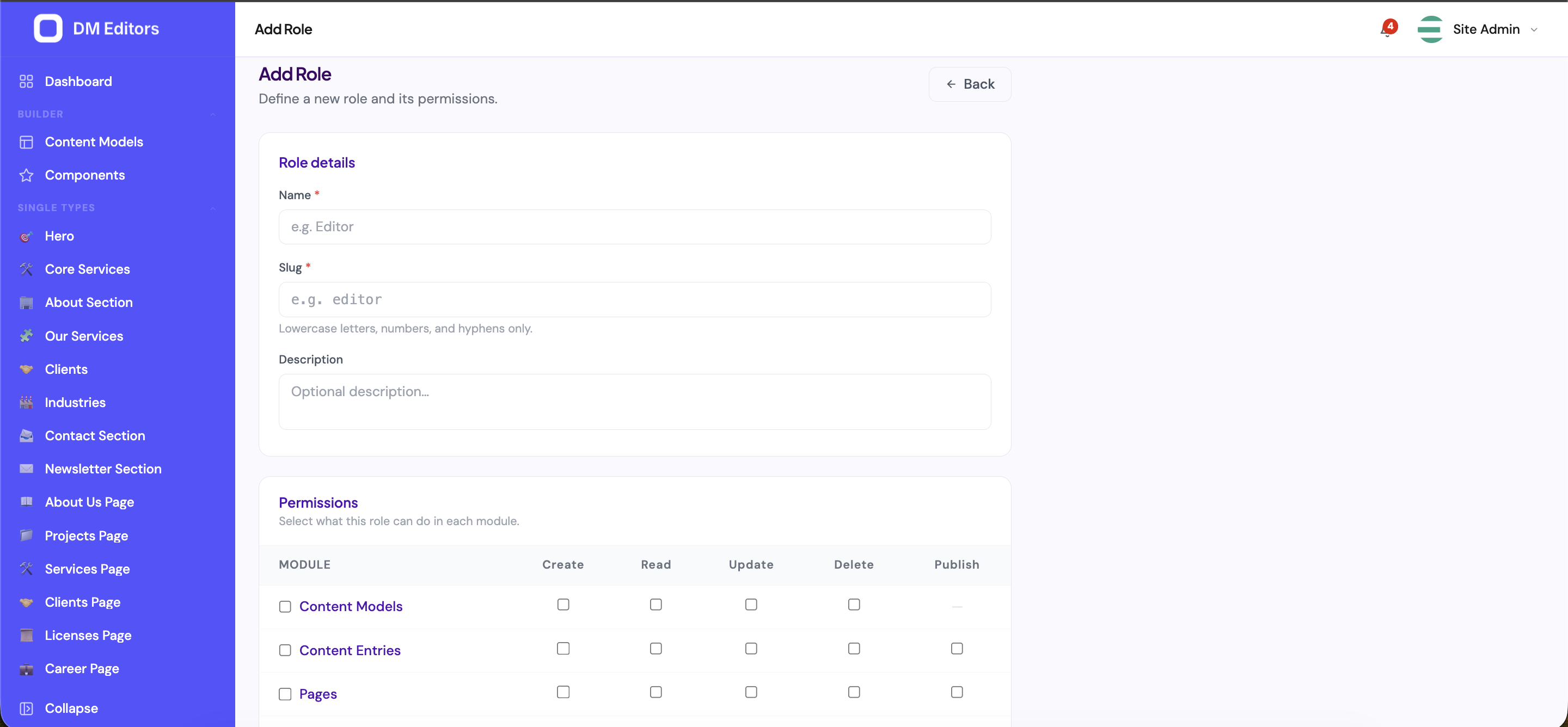
The role permission matrix. - Save The role appears in the user-edit screen the next time you assign roles.
Edit an existing user
- Open Users, click the row.
- Update name, email, or roles. Leave the password blank to keep it.
- Save.
Deactivate vs delete
- Deactivate (flip the toggle off) — the user can't sign in, but their authored content stays intact and attributed to them. Reversible.
- Delete (soft) — the user is removed; their content remains attributed by name but their account is gone. Use when someone leaves.
Don't lock yourself outYou can't delete the last Super Admin. If you have only one, create a second one before changing your own role.
Reset another user's password
- Open the user's edit screen.
- Type a new password into the password field.
- Save. Share the new password with them through a secure channel.
See who's logged in
The Users list shows Last login for each user. Click into a user to see their active sessions and (if needed) sign them out.
Next steps
With your team in, let's polish site-wide settings — logo, social links, SEO defaults.