Admin Tour
Every screen, every menu — what it does and when you'd use it.
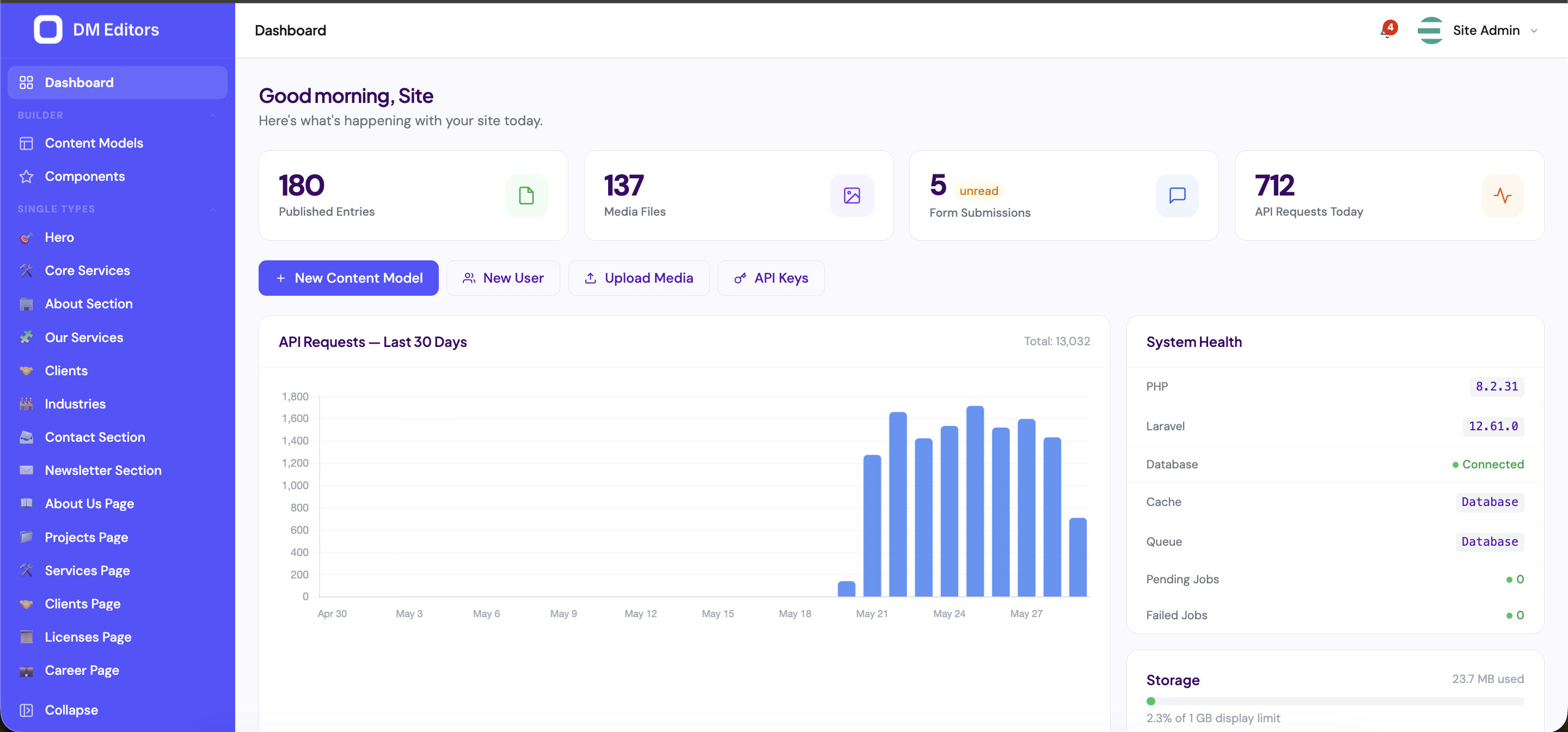
The left sidebar
Your main navigation. Reorder items by dragging them. Click an item to open that section.
| Item | What it's for |
|---|---|
| Dashboard | Home screen with recent activity and content counts. |
| Content models | Define the types of content (Blog Post, Page, Product…). One-time setup. |
| Your content types | Below the system items, each content type appears as its own list (e.g. "Blog Posts", "Pages"). |
| Components | Reusable groups of fields you can drop into multiple content types. |
| Media | The file library: images, videos, PDFs. |
| Forms | Contact / signup / inquiry forms and their submissions inbox. |
| Users | Add and manage other admins. |
| Roles | Define permission groups (Editor, Author, …). |
| Languages | Configure which languages your site supports. |
| API keys | Generate credentials for developers / external apps. |
| Webhooks | Notify other systems when content changes. |
| Activity | Audit trail of every change. |
| Settings | Site-wide configuration: logo, SEO defaults, email, social links. |
The top bar
- Search — global search across entries and media (press / from anywhere).
- Locale switcher — only appears if multiple languages are active.
- Notifications bell — recent system events that affect you.
- Your avatar — profile, sign-out, theme toggle.
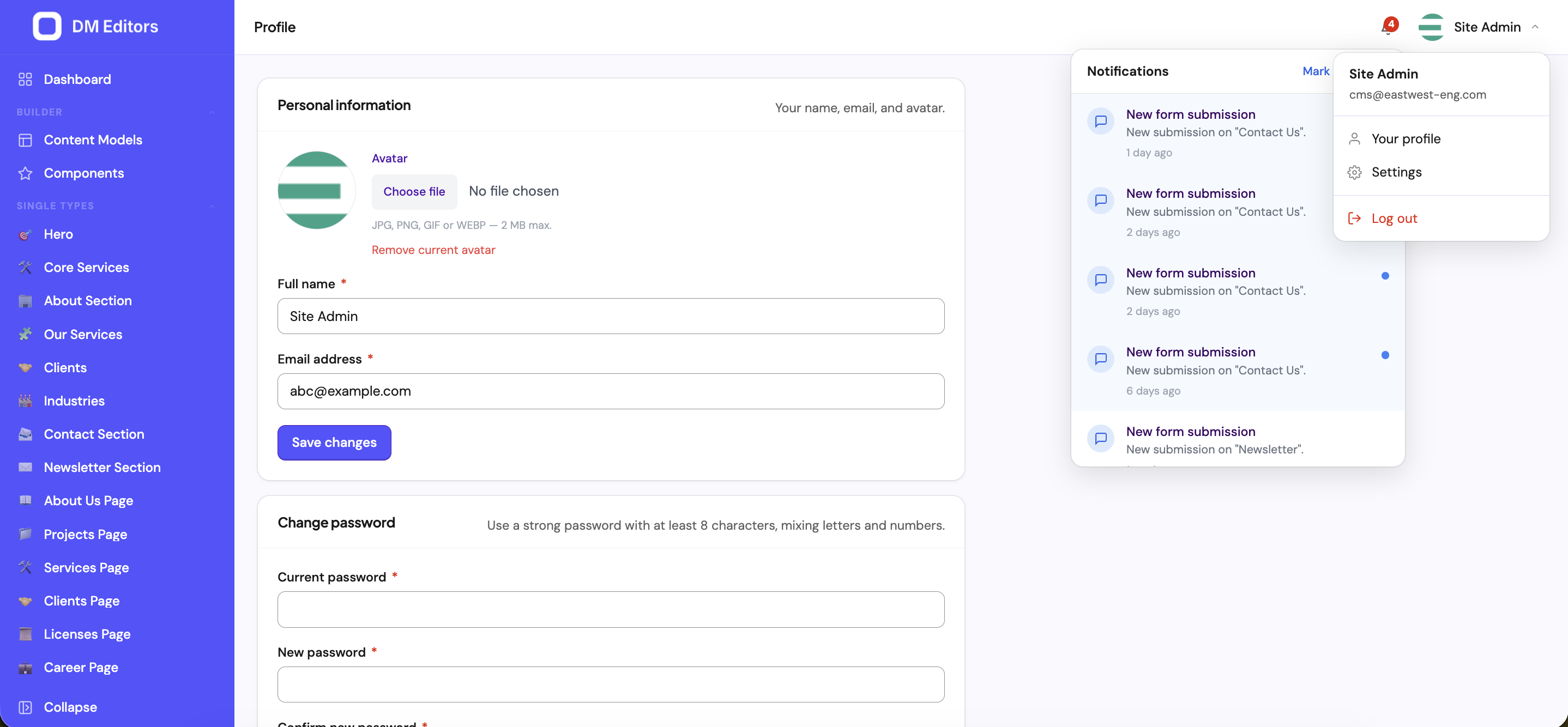
List pages
Every "index" screen (entries, media, submissions, …) follows the same pattern:
- Filter bar at the top — status, language, date range, free-text search.
- Table in the middle — click a column header to sort, click a row to open.
- Bulk actions — tick the checkboxes on the left, then pick an action from the dropdown above.
- Pagination at the bottom — page size is per-user (saved in your profile).
- Primary action button in the top-right ("New entry", "Upload", …).
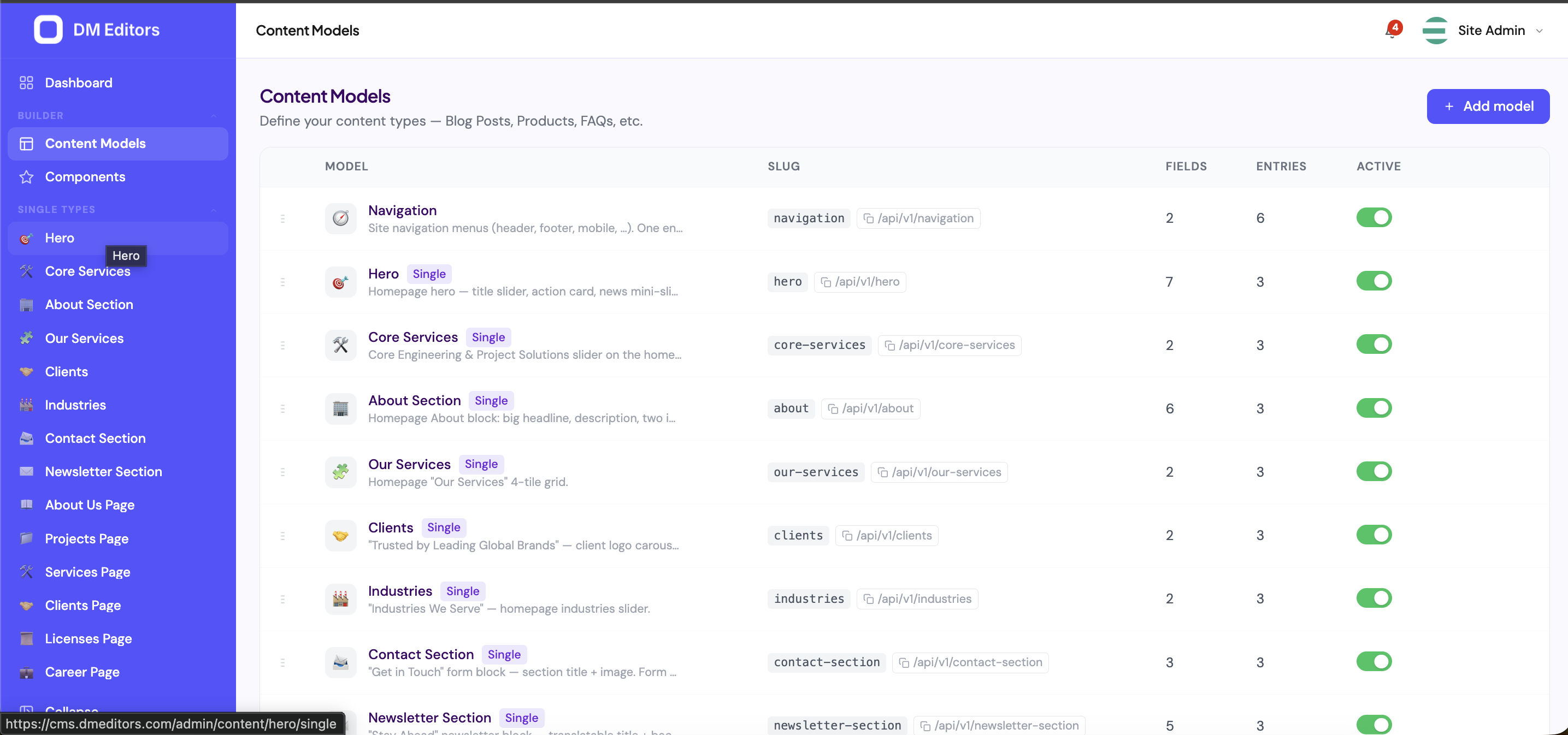
Edit pages
Most edit screens have:
- The main form on the left (or center).
- A side panel on the right with status, language, schedule, SEO.
- Save bar docked at the bottom — "Save draft", "Publish", "Save changes".
- A revisions link in the side panel to view earlier versions.
Keyboard shortcuts
| Shortcut | Action |
|---|---|
| / | Focus global search |
| ⌘ + S | Save current form |
| ⌘ + Enter | Save & publish |
| g then d | Go to dashboard |
| g then m | Go to media |
| ? | Show all shortcuts |
Don't memorize — exploreHover over any icon for a tooltip. Most actions have a discoverable shortcut next to the menu item.
Next steps
Time to define your first content type. This is where DM Editors starts to feel powerful.