Build Forms
Contact forms, newsletter signups, inquiry forms. Build them here, embed them on your site, manage submissions in one inbox.
Build your first form
-
Open Forms
Click Forms in the sidebar, then New form.
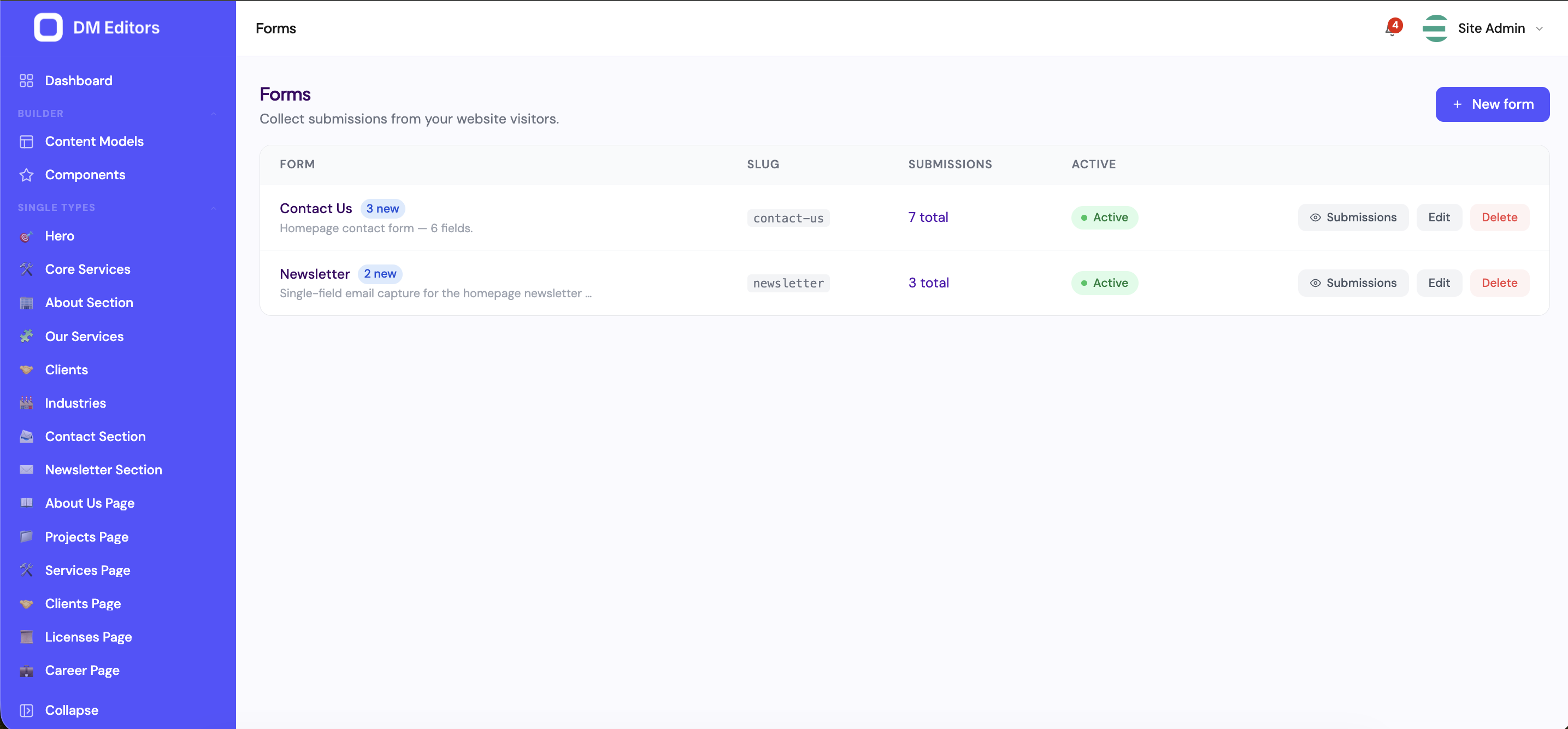
The Forms list. -
Name and slug
Name it Contact Us. The slug auto-fills as
contact-us— this becomes the submit URL. -
Add fields
Click Add field for each thing you want to collect. For a basic contact form:
- Name — text, required
- Email — email, required
- Subject — select, with options Sales / Support / Other
- Message — textarea, required, max 5000 chars
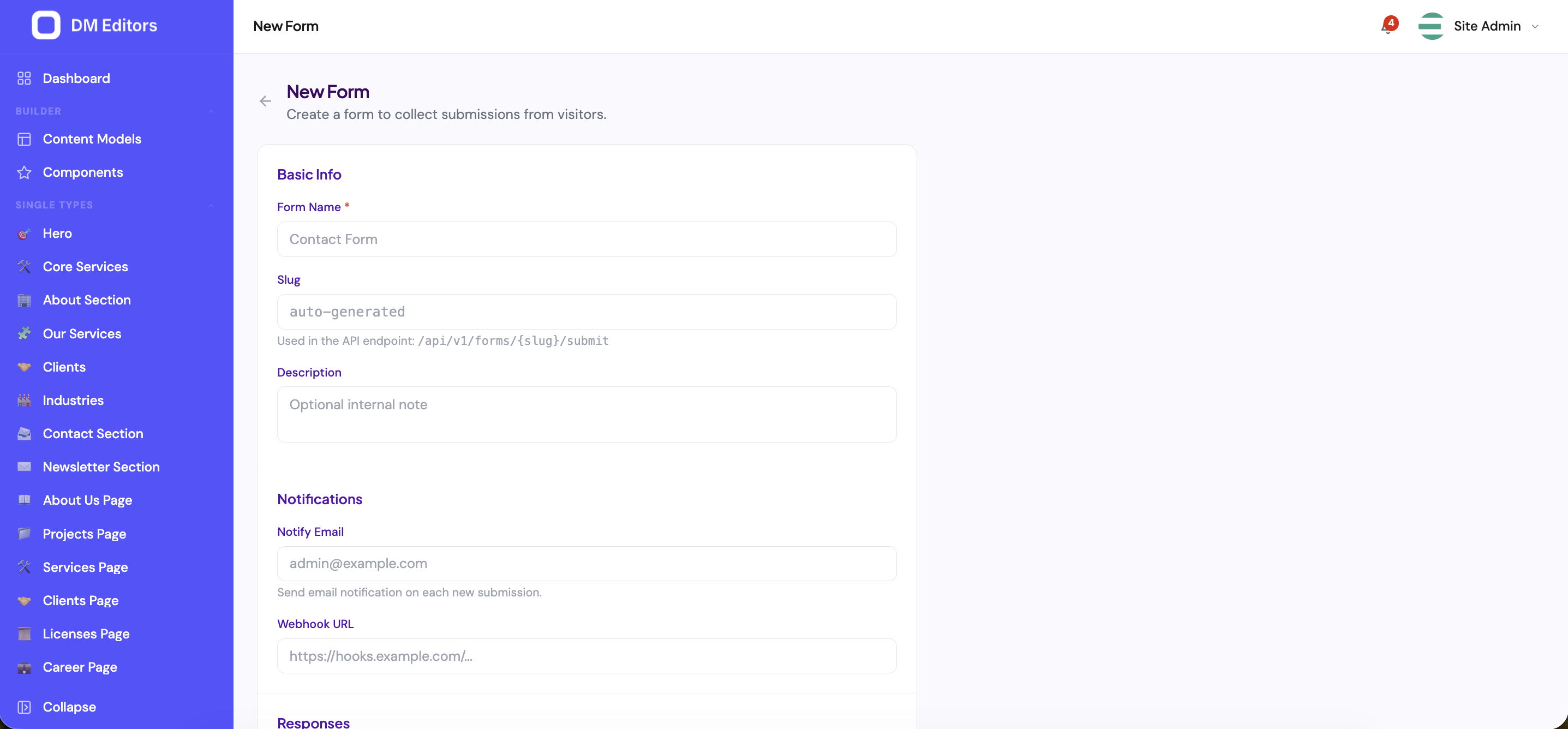
Building a new form. - Add notification emails Under Notifications, enter the addresses that should receive each new submission. Comma-separated.
- Customize the success message What visitors see after a successful submit. Default: "Thanks — we'll be in touch soon."
- Turn on spam protection Toggle Honeypot on — this adds an invisible field that bots fill but humans can't see. If you expect heavy abuse, paste a reCAPTCHA secret too.
- Save and activate Click Save. Check the Active toggle is green — that's what makes submissions go through.
Embed the form on your site
Your developer can grab the form schema from /api/v1/forms/contact-us and render it dynamically, or post directly to /api/v1/forms/contact-us/submit. Hand them the slug and you're done.
For a quick HTML test:
<form action="https://your-host/api/v1/forms/contact-us/submit" method="post">
  <input  name="name"    type="text"  required />
  <input  name="email"   type="email" required />
  <textarea name="message" required></textarea>
  <button type="submit">Send</button>
</form>
Manage submissions
-
Open the submissions inbox
From the Forms list, click your form's name, then the Submissions tab.
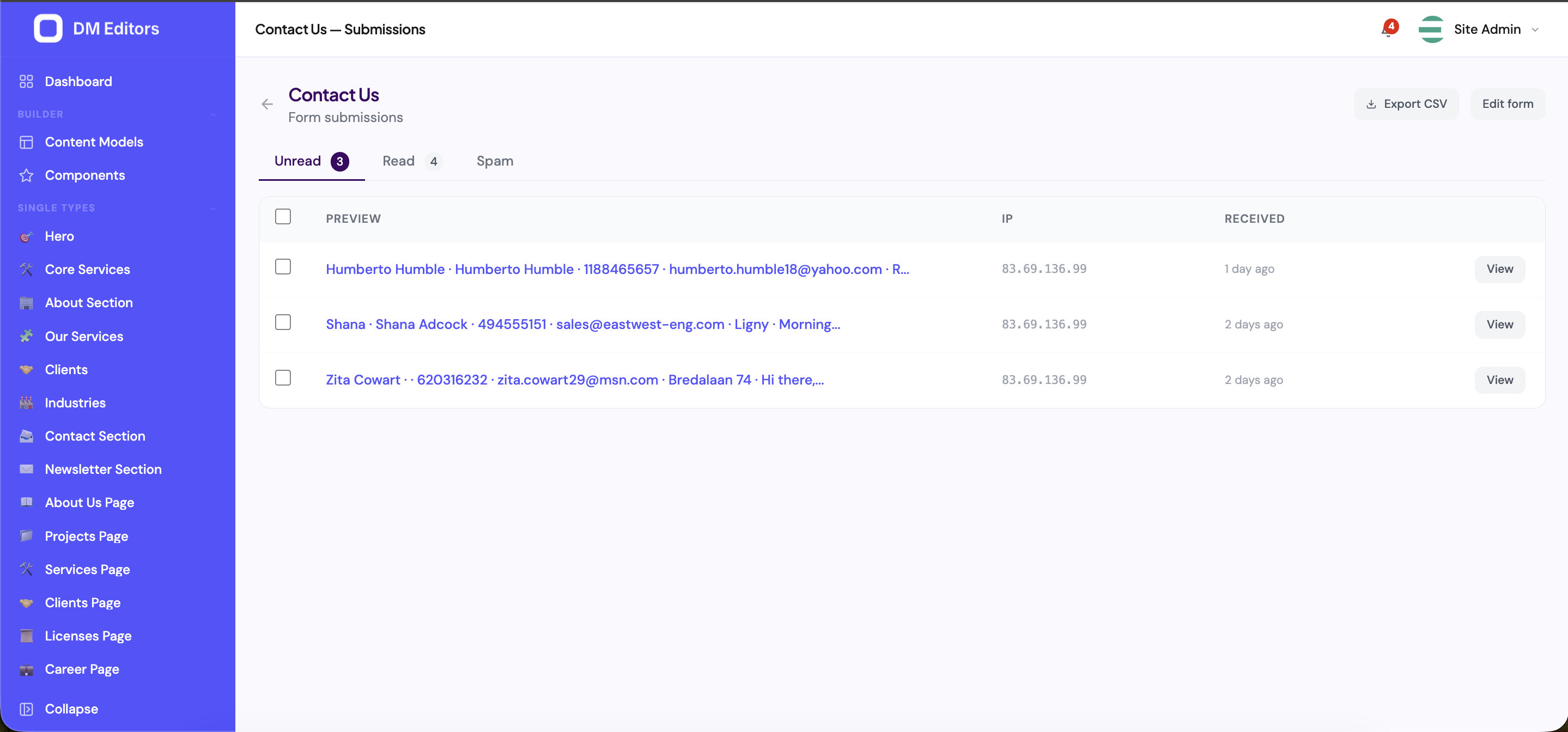
The submissions inbox for a form. -
Click a row
The full submission opens — every field value, the IP it came from, the user agent, the page they submitted from.
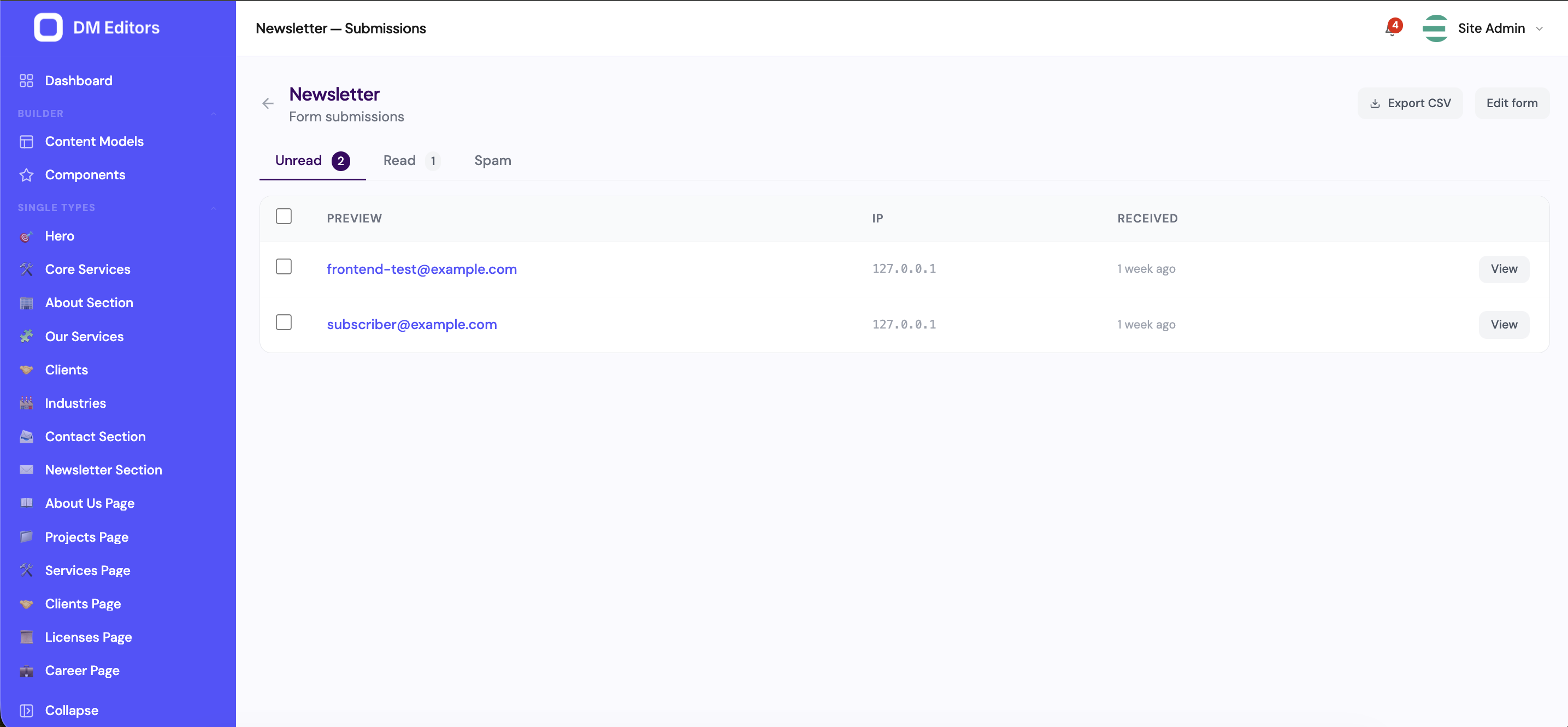
Opening an individual form submission. -
Triage
Use the status buttons:
- Mark as read — handled.
- Mark as spam — moves out of the main inbox.
- Delete — gone.
- Add internal notes The Notes box on the right is for your team's eyes only — log follow-ups, who's handling it, decisions made.
Export submissions to CSV
- From the submissions list, click Export.
- Optionally narrow the date range first.
- A CSV downloads with one row per submission, one column per field plus metadata.
Pause a form
To stop accepting submissions without deleting anything (e.g. during a campaign break):
- Open the form's edit screen.
- Flip the Active toggle off.
- The public submit endpoint now returns "This form is no longer accepting submissions" — existing submissions are untouched.
Don't get spam? Don't get any submissions?Check that the form is active, that the slug your frontend posts to matches, and that the success message reads "Thanks…" after a test submit.
Next steps
Time to bring in your team — let's set up user accounts and roles.